Why this architecture & tools
Google AI Studio – Build Apps: Enables “vibe coding” (build visually, integrate AI quickly) to create screens, user flows and prompt logic. blog.google+2Google AI Studio+2
Google Sheets: An accessible, zero-cost backend to capture user form data without needing a full database or server setup. There are many guides on using Apps Script + Sheets for webhooks. svix.com+1
Generative AI model (Gemini Pro 2.5): Powers the personalized plan generation logic.
The result: rapid MVP with AI + UI + data capture.
Step 1: Defining the flow and screens
We started by sketching the simple user flow:
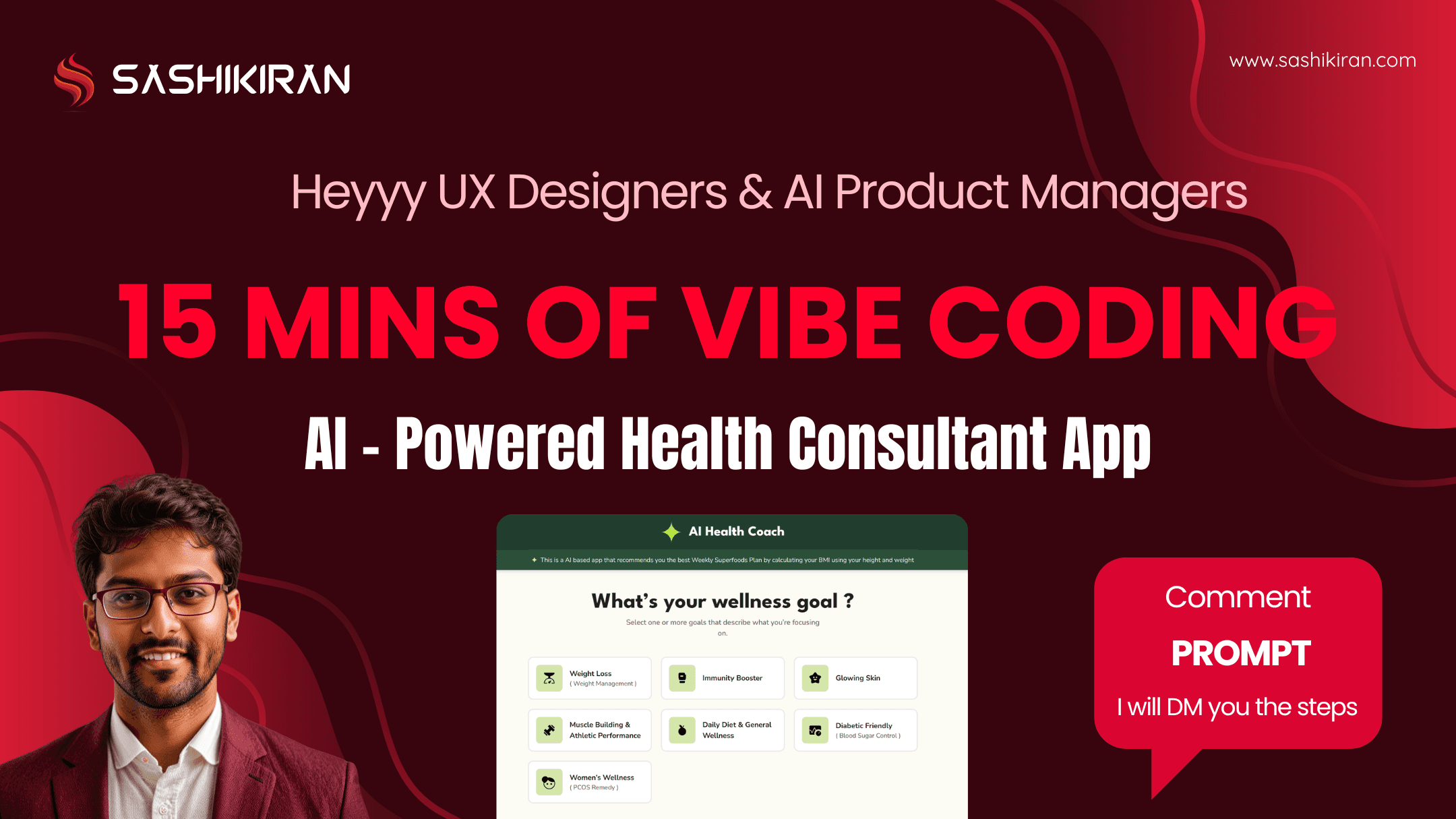
Screen 1: User selects their health or diet goal (e.g., Weight Loss, Immunity Booster …)
Screen 2: User enters personal bio — name, age, gender, weight, height, phone number
Screen 3: AI generates and shows the weekly super-food plan based on their inputs.
We also planned data capture: when the user submits the form on Screen 2, the selected goals + bio should be saved in Google Sheets.
Step 2: Prompting Google AI Studio to build the app
In Google AI Studio → Build Apps we used the following prompt in the “App Prompt” field, telling the system what screens to build, what logic, and how to integrate Sheets. You can copy-paste and adapt.
You are an AI Health Coach powered by Gemini Pro 2.5.
You collect user data, analyse wellness goals, and generate a personalised weekly super-food plan using Ahadhiyas’ product range while ensuring the plan suits the user’s age, weight, and height.
You also securely store user data (goal selections and personal info) in a Google Sheets spreadsheet for insights and follow-up.

---

## VISUAL DESIGN SYSTEM
Theme: Light mode
Primary colour: #3E8E4B (Ahadhiyas Green)
Accent colour: #F3F9F4 (Soft mint background)
Font: Inter / Poppins
Button style: Rounded (12px radius), solid green background, white text
Card background: White with soft shadow (#0000000D) and subtle border (#E7E7E7)
Icons: Minimal, outlined
Spacing: Generous white space, airy layout
Overall tone: Modern, trustworthy, nature-inspired.

---

## SCREEN 1 — Select Your Health / Diet Goal
Ask user: “What’s your wellness goal today? 🌿”
Offer selectable cards (one or more):
- Weight Loss / Weight Management
- Immunity Booster
- Glowing Skin
- Muscle Building & Athletic Performance
- Daily Diet & General Wellness
- Diabetic Friendly / Blood Sugar Management
- Women’s Wellness / PCOS Remedy
On selection, user taps **Continue** → proceeds to Screen 2.

---

## SCREEN 2 — Personal Bio Input
Heading: “Tell me about you 💚”
Sub-text: “Your details help me personalise your plan.”
Input fields:
1. Full Name
2. Age (years)
3. Gender (dropdown: Male/Female/Other)
4. Weight (kg)
5. Height (cm)
6. Phone Number
Bottom CTA: **Generate My Personalized Plan** → triggers data save to Sheets AND proceeds to Screen 3.

---

## SCREEN 3 — Personalized AI Super-food Plan
Top bar: App logo, centre title “Your Personalized Super-food Plan”
First, reasoning: “Based on your age, height and weight … here’s why this plan suits you.”
Then, a 7-day table (Sunday–Saturday) with Morning + Evening product combinations.
Then, list of recommended products with “Order on WhatsApp” buttons linking to `https://wa.me/91XXXXXXXXXX?text=Hi! I want to order Ahadhiyas {Product Name}`
Footer: “Consistency is key! Follow your plan for 7 days and feel the difference 💚”

---

## DATA-CAPTURE INTEGRATION
When user submits Screen 2, send form data to Google Sheets via a Webhook / Apps Script endpoint. Data stored: timestamp, name, age, gender, weight, height, phone, selected_goals, bmi (calculated)
Step 3: Visual polish and UI layout
While AI-Studio takes care of much of the UI scaffolding, you refine/adjust:
Choose the green (#3E8E4B) as primary brand colour throughout buttons, selected cards, headers.
Use white background with plenty of space, subtle shadows to elevate cards.
On Screen 1: use vector illustration of a diet consultant at the top (upload your asset) – gives personality.
On Screen 3: include your brand logo of “Ahadhiyas” in the header (upload logo) to reinforce branding.
Ensure typography (Inter/ Poppins) consistent – headings bold, body text medium, field labels lighter.
Ensure the flow is mobile-first: large tap targets, clearly separated cards, easy vertical scroll.
tep 4: Setting up Google Sheets for data capture
We create a simple backend with Google Sheets + Apps Script.
a) Create the Sheet
Go to Google Drive → New → Google Sheets. Name it e.g., UserHealthProfiles.
Rename sheet/tab to submissions.
In row 1, add headers:
timestamp | name | age | gender | weight_kg | height_cm | phone | selected_goals | bmi
b) Create Apps Script endpoint
Extensions → Apps Script
Paste script:
function doPost(e) {
  var ss = SpreadsheetApp.getActiveSpreadsheet();
  var sheet = ss.getSheetByName('submissions');
  var payload = JSON.parse(e.postData.contents);
  var timestamp = new Date();
  var name = payload.name || '';
  var age = payload.age || '';
  var gender = payload.gender || '';
  var weight = payload.weight || '';
  var height = payload.height || '';
  var phone = payload.phone || '';
  var selected_goals = Array.isArray(payload.selected_goals) ? payload.selected_goals.join('|') : (payload.selected_goals || '');
  var bmi = '';
  if (weight && height) {
    var w = Number(weight);
    var h = Number(height)/100;
    bmi = (w/(h*h)).toFixed(2);
  }
  sheet.appendRow([timestamp, name, age, gender, weight, height, phone, selected_goals, bmi]);
  return ContentService.createTextOutput(JSON.stringify({status:'success'})).setMimeType(ContentService.MimeType.JSON);
}
c) Deploy as Web App
Deploy → New Deployment → Web App
Execute as: Me
Who has access: Anyone (for prototype)
Copy the URL – this becomes your webhook endpoint.
d) Connect it from Build Apps
In Build Apps, on the Screen 2 submit button:
Action: HTTP POST → URL = the Apps Script web-app URL
Headers: Content-Type: application/json
Body JSON:
{
  "name": "{{fullName}}",
  "age": {{age}},
  "gender": "{{gender}}",
  "weight": {{weight}},
  "height": {{height}},
  "phone": "{{phone}}",
  "selected_goals": {{selectedGoalsArray}}
}
Step 6: Example prompts used for plan generation
When it came to the AI logic on Screen 3 (plan generation), we used something like this:
You are an AI Health Coach specialising in superfoods.
Use the user’s inputs: name, age, gender, weight, height, selected_goals.
Calculate their BMI = weight/(height/100)^2.
Based on their goals, choose from these product combinations:

- Immunity Booster → Moringa Powder + Red Banana Malt + ABC Malt
- Glowing Skin → ABC Malt + Red Banana Malt + Moringa Powder
- Weight Loss / Weight Management → Black Rice Porridge Mix + Adults Health Mix + Moringa Powder
- Muscle Building & Athletic Performance → Adults Health Mix + Moringa Powder + Beetroot Malt
- Daily Diet & General Wellness → Adults Health Mix + ABC Malt
- Diabetic Friendly / Blood Sugar Management → Black Rice Porridge Mix + Adults Health Mix
- Women’s Wellness / PCOS Remedy → Black Rice Porridge Mix + Beetroot Malt + Moringa Powder

If multiple goals are chosen, merge the combinations and vary across the 7-day plan (Sunday to Saturday) morning/evening.

Output format:

Header: “Your Personalized 7-Day Superfood Plan”
Subheader: “Hi {name}, here’s your tailored plan for a healthier you 👇”

Table:
| Day | Morning | Evening |
| Sunday | … | … |
| … | … | … |
| Saturday | … | … |

Then list the products you’ll need and include “Order on WhatsApp” links.

Tone: Friendly, motivational, not medical
Step 7: Lessons Learned & Tips
Having a clear product mapping in advance makes the AI prompt simpler.
Using Google Sheets lets you iterate backend changes quickly without deploying servers.
For production you’ll move from Sheets → real database (e.g., Firestore) and secure the endpoint.
Visual branding matters: consistent brand colours and assets make the prototype look professional.
Prompt engineering is key — large flows (3 screens + logic + data capture) need clear instructions.
Test early: submit dummy data to sheet, verify your payload, inspect logs if things don’t show up.